Navixy and RMPD: how to connect a Navixy or TA GPS (TIPSTER) tracker to trip tracking
Navixy is the platform behind many GPS tracking providers, and TA GPS from TIPSTER is one of them. “Navixy RMPD” really asks one thing: how to see the truck from your own tracker next to the RMPD data. Here is how to connect Navixy or TA GPS to a Moisa Logistics account in 3 steps, what happens to your password and the “Moisa Logistics” key, what you see in trip tracking, and why a tracker on its own is not yet a locator for an RMPD.
 Moisa Logistics··8 min read
Key figures
In short
Navixy and RMPD come together in a Moisa Logistics account like this: “Profile” → “Integrations” → “GPS trackers” → the “Navixy” system or the “TIPSTER” tile → the site, the account owner’s login and password → “Sign in and connect”. The vehicles then appear on the “Fleet map”, and in trip tracking for an RMPD your tracker’s line runs next to the PUESC line. But a Navixy tracker on its own is not a locator for RMPD or SENT.
- We do not store the password: we sign in once, create a “Moisa Logistics” key and sign out at once. You see the key in your Navixy account and can revoke it at any time.
- We only see the vehicles and their coordinates and change nothing in the tracker. Data refreshes every 5 minutes.
- A roadside check only counts the position in PUESC: it comes from the e-TOLL PL app, an OBU, or an operator’s ZSL registered in SENT.
Navixy, TA GPS and TIPSTER: who is who
Navixy is a GPS tracking platform used by many tracker providers, each with its own sign-in address. The Navixy documentation says so plainly: the address of the login page depends on your GPS service provider. TIPSTER sells GPS trackers and vehicle monitoring; on its site tipster.ua the system sign-in leads to tagps.com.ua, and the mobile apps are Navixy apps. That is why the account lists TA GPS (TIPSTER) alongside Navixy, and the connection works the same way.
| Where you sign in | What to pick in the “System site” field |
|---|---|
| Navixy, European server | Navixy (Europe) |
| Navixy, American server | Navixy (America) |
| tagps.com.ua (TIPSTER) | TA GPS (TIPSTER) - first in the list |
| Another Navixy-based provider with its own address | “Other address…” and the site where you sign in |
Not sure which server is yours - ask your tracker provider: they gave you the sign-in address.
Navixy RMPD and TIPSTER GPS: a tracker does not replace the locator
An RMPD must contain a locator number or a device number (art. 28b(3) point 12 of the Polish Road Transport Act), and positions must reach the SENT register on PUESC. Three options qualify: the e-TOLL PL app on the driver’s phone, an OBU on-board unit, or a fixed tracker of an external location system - a ZSL (art. 2 point 15a of the SENT act). Only its operator can register an OBU or ZSL in PUESC, and the carrier receives a business number such as Z00-KT45HM-2 (PUESC FAQ 07.05).
The tracker you see in Navixy or TA GPS shows the truck to you and your dispatcher. PUESC does not see it until a ZSL operator has registered the same device in the SENT service. Only then does the RMPD carry its business number - not the unit name and not the tracker ID from Navixy.
Is your provider a ZSL operator? Ask directly whether the device is registered in the SENT service, not only in e-TOLL, and what its business number is. You can check yourself on the OBU and ZSL page on etoll.gov.pl: it links to the official list “Operatorzy OBU/ZSL dopuszczeni do systemu e-TOLL”. That list covers e-TOLL, so even a listed operator must register the device in SENT separately: a device registered for e-TOLL only pays the toll but sends no positions to the RMPD (PUESC FAQ 07.15). Until you have a business number, the locator remains e-TOLL PL on the driver’s phone. How to pick a main and a backup locator is explained in GPS locator for RMPD and SENT. Which other systems connect to the account and how a fleet tracker differs from a locator is covered in the overview GPS tracker for RMPD and SENT.
How to connect Navixy or TA GPS: 3 steps
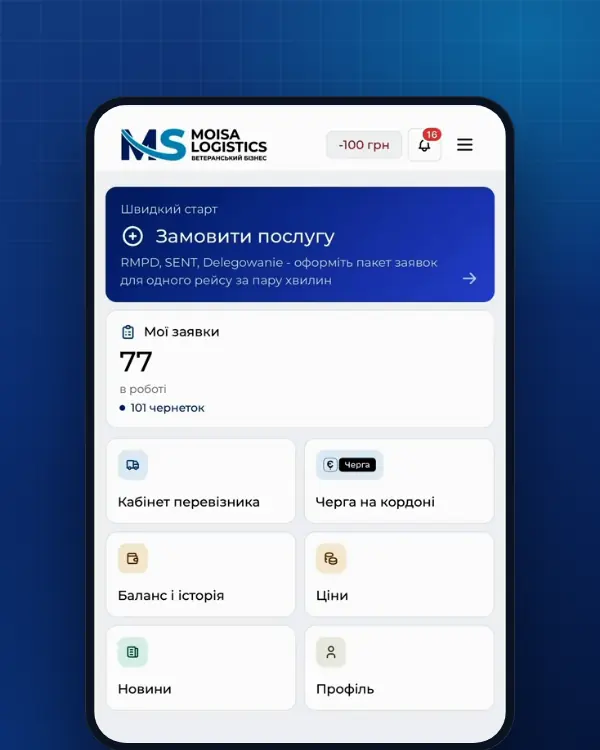
Where: “Profile” → the “Integrations” tab → the “GPS trackers” block. Pick the “Navixy” system in the row of systems or the “TIPSTER” tile. The company owner connects it, and the card has a “Step-by-step guide” button.
- Site. In the “System site” field pick Navixy (Europe), Navixy (America) or TA GPS (TIPSTER). A provider with its own address - “Other address…” and type the site where you sign in.
- Owner login and password. Enter the login and password of the Navixy account owner - the person who signs in to the account. In Navixy only the account owner manages access keys, so an employee login will not work here.
- Sign-in. Click “Sign in and connect”. If Navixy emails a code, a “Code from the email” field appears: enter the code and click “Confirm code”. According to the Navixy documentation the code is valid for 5 minutes, and your provider decides whether it is switched on.
After that, vehicles are matched to the fleet by registration plate automatically. Anything not matched, you pick in the tracker list under the connection card. Vehicles in several accounts, say in TA GPS and with another Navixy-based provider - use “Add another Navixy account”.
The password and the “Moisa Logistics” key: what happens
- No stored password. The account signs in to your Navixy account once, creates the “Moisa Logistics” key and signs out straight away. From then on only the key is used.
- You can see the key. It sits in your Navixy account among the API keys (per the Navixy documentation - Account Settings → API Keys; your provider may translate the menu). You can delete it at any time.
- What we do with the data. We only view the vehicles and their coordinates for trip tracking and route checks. We change nothing in your trackers, rules or Navixy settings. The Navixy documentation openly warns that an API key gives wide access to the account, so keep it under control: “Moisa Logistics” is the only key we create.
- Disconnecting. The “Disconnect” button: we delete the access on our side, and the trackers disappear from the fleet map. Delete the “Moisa Logistics” key itself in the Navixy settings. If you delete the key first, the account says Navixy no longer accepts the saved access and the system needs connecting again.
What you see in the account after connecting
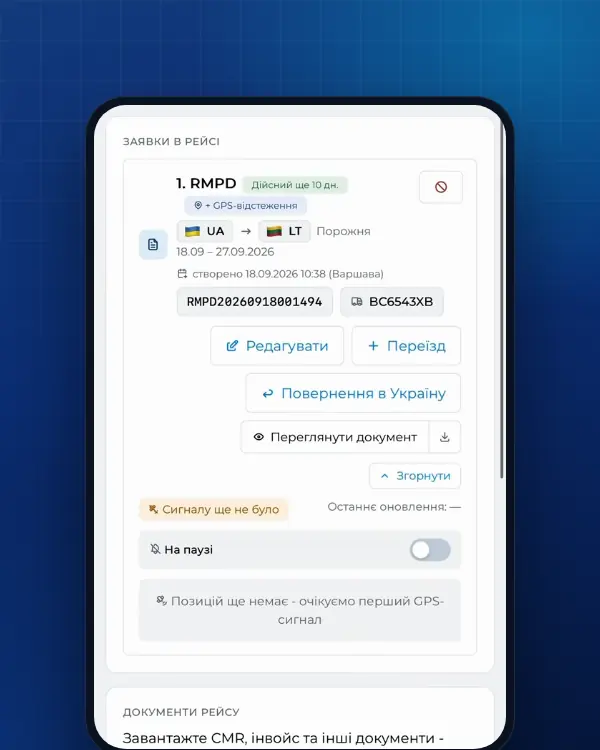
Trip tracking is built on PUESC data: the status, the last point and an alert when GPS disappears. The Navixy or TA GPS tracker adds a second source - whether the truck was really moving while PUESC was silent.
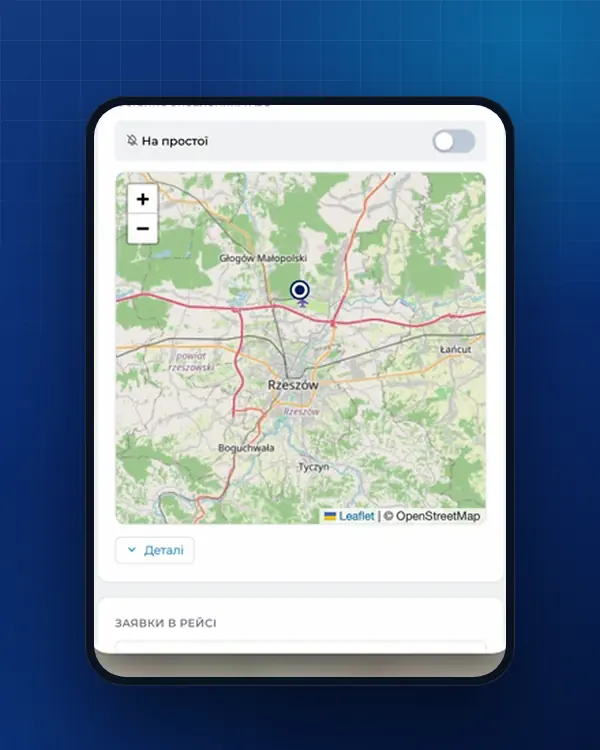
- “Fleet map”. Every vehicle with a tracker - on a trip or not, with the time of its last point. Vehicles on a trip with RMPD tracking show the order number and the route driven.
- Tracker line. A dashed line shows your tracker’s route during the order. Where there is a dashed line but no PUESC line, the truck was moving while the PUESC locator was silent. If the system does not provide movement history, the account says so and there is no line.
- “Fine risk”. The company tracker sees movement but PUESC does not: that entry appears in the tracking log. Call the driver now, while the trip is still under way.
- Pause without an alert. PUESC is silent and the tracker shows a stop - the account sets a pause with no alert.
How tracking works and what to do when the signal is lost is covered in why RMPD 406 and trip tracking and GPS signal lost: what to do. A Wialon tracker connects differently - through the Wialon sign-in page; see Wialon and RMPD.
Common mistakes
| Mistake | What you see | What to do |
|---|---|---|
| An employee login instead of the account owner | The connection fails | Sign in with the Navixy or TA GPS account owner’s login |
| The wrong site | The login and password are rejected, though they work on the provider’s site | Pick the site you use every day: Navixy (Europe), Navixy (America), TA GPS (TIPSTER) or “Other address…” |
| The email code expired | The code is not accepted | Sign in again and enter the fresh code straight away |
| The “Moisa Logistics” key was deleted in Navixy | “Navixy no longer accepts the saved access” | Connect the system again |
| The Navixy tracker ID entered in the RMPD | The tracker shows the truck, but RMPD 406 has no position | Enter e-TOLL PL or the ZSL business number with an RMPD 101 update |
| A vehicle was not matched | The tracker is in the list, but the vehicle is not on the map | Pick the vehicle for that tracker in the list under the card |
From our experience. A tracker on the map is reassuring, but a roadside check looks at PUESC. After the border check RMPD 406, and use the tracker line as your own evidence of where the truck was moving while PUESC was silent.
What it costs and where to order
- RMPD full service - 500 UAH per document, self-service in the account - 100 UAH (first 10 days - 0 UAH); trip tracking is included.
- Tracking for an RMPD prepared elsewhere - RMPD 406 for 50 UAH.
Order: RMPD full service, RMPD self-service, RMPD 406. The tracker is connected in the account profile; no separate order is needed.
Frequently asked questions
Sources
- Ustawa z dnia 6 września 2001 r. o transporcie drogowym, tekst jednolity Dz.U. 2025 poz. 1490 (art. 28, 28b, 28c, 89a1, załączniki nr 1 i 3)checked 18 November 2026
- Ustawa o systemie monitorowania drogowego i kolejowego przewozu towarów (SENT), tekst jednolity Dz.U. 2024 poz. 1218: art. 2, 3 ust. 6, 5-11, 13-17, 21-24, 31-32 (dla RMPD - przez art. 28b ust. 5 ustawy o transporcie drogowym)checked 18 November 2026
- PUESC - FAQ SENT, 07. Obsługa zewnętrznych systemów lokalizacji ZSL/OBU (07.05-07.20, aplikacja e-TOLL PL jako lokalizator zapasowy)checked 18 November 2026
- e-TOLL - Urządzenia pokładowe OBU i ZSLchecked 21 November 2026
- e-TOLL - Operatorzy OBU/ZSL dopuszczeni do systemu e-TOLL (lista PDF, wersja 06.11.2026)checked 21 November 2026
- TIPSTER - Tipster GPS моніторинг: вхід у систему на tagps.com.ua, мобільні застосунки Navixychecked 21 November 2026
- Navixy - Sign up: adres strony logowania zależy od dostawcy usług GPSchecked 21 November 2026
- Navixy - Two-factor authentication: jednorazowy kod e-mailem, ważny 5 minut, włącza dostawcachecked 21 November 2026
- Navixy - API keys: Account Settings → API Keys, usuwanie klucza, szeroki dostęp kluczachecked 21 November 2026
- Navixy API - Authentication: klucze API zarządza właściciel konta, klucz można odwołaćchecked 21 November 2026
Need documents for a trip?
Create a free account and prepare the document in your account - by yourself or with our team’s hands. Or leave a request: we will call you and tell you what you need for your particular trip.
More news


We are on TikTok
How to prepare documents from your phone, what is changing for carriers and where to save - in short videos.